 MacEdition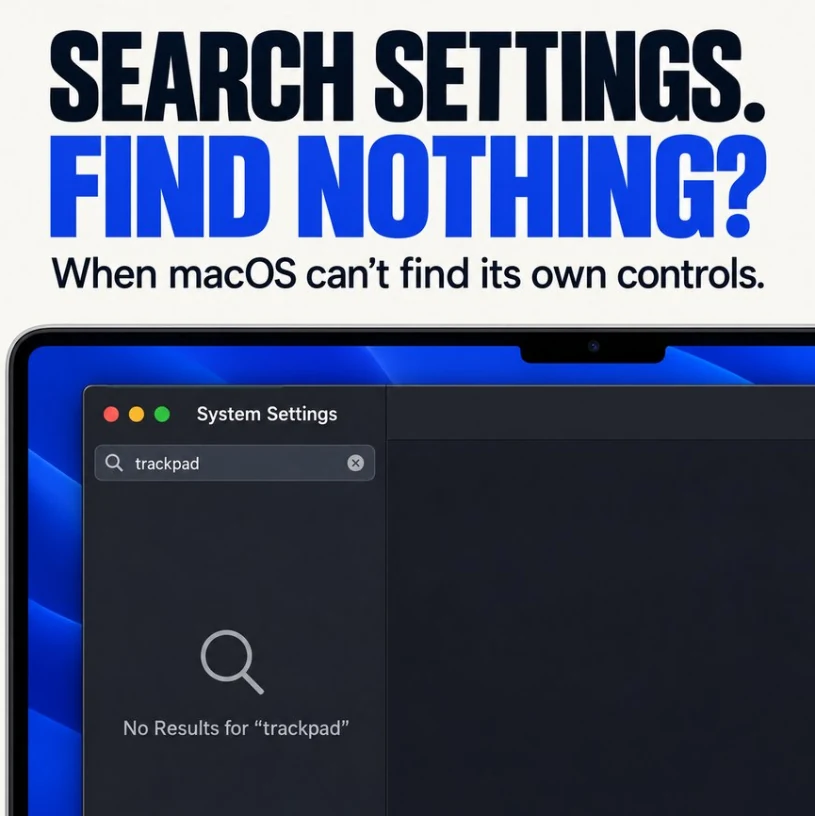
You open System Settings, type trackpad into the search field, and get No Results. The Trackpad section is sitting right there in the sidebar. Other searches come back empty too, or show only a handful of random matches.
It looks like something is badly broken. Usually it isn’t. System Settings search depends on the same metadata index that Spotlight uses, and when that index is missing, disabled or half-built, Settings search quietly returns nothing. Here is what to check, in order, before you reset anything.
First, rule out the simple causes
- Quit System Settings completely with Command-Q and open it again. Closing the window isn’t enough; the search field sometimes stops responding until the app restarts.
- Check the language. Settings search matches terms in your Mac’s system language. If your Mac is set to German, French or another language, English terms like “trackpad” won’t match. Search in the system language, or check General > Language & Region.
- Try a different word. Search matches setting names, not every word you might use. “Tap to click”, “scroll” or “pointer” sometimes work when a pane name doesn’t.
- Restart the Mac. It sounds too simple, but it restarts the indexing services that Settings search relies on.
Did you just update macOS?
After a major macOS update, the Mac rebuilds its Spotlight index from scratch. On a Mac with a lot of files, that can take anywhere from a few hours to a couple of days, and until it finishes, search in System Settings, Mail, Notes and Spotlight itself can be incomplete or empty.
To check, press Command-Space and type anything. If Spotlight shows an indexing message or a progress bar, it hasn’t finished. You can also open Activity Monitor, choose the CPU tab and look for mds_stores or mdworker_shared near the top.
If indexing is still running, the fix is patience: leave the Mac awake and plugged in overnight. Our guide to Spotlight indexing that takes days covers how to help it finish.
Check that indexing is actually switched on
If indexing isn’t running at all, it may be switched off for the volume that holds your system data. Open Terminal and run:
mdutil -saYou’ll see a line for each volume. Look at / and /System/Volumes/Data. Both should say Indexing enabled. If either says Indexing disabled, turn it back on:
sudo mdutil -i on /System/Volumes/DataEnter your Mac password when asked; nothing appears as you type. Indexing starts in the background, and Settings search usually comes back once it has made some progress.
Check Spotlight’s privacy list
Anything listed under Spotlight’s privacy settings is excluded from the index. If your whole disk or your Home folder ended up there, often by a cleaning app or a past troubleshooting attempt, search breaks everywhere.
- macOS 15 Sequoia and later: open System Settings > Spotlight, scroll down and click Search Privacy.
- macOS 14 Sonoma and earlier: open System Settings > Siri & Spotlight and click Spotlight Privacy.
Remove Macintosh HD, your Home folder or anything else you don’t intend to hide from search. Click Done and quit System Settings.
Rebuild the index
If indexing is on, nothing is excluded, and search is still empty, the index is probably damaged. Rebuilding it is safe: it deletes only the search index, not your files. It does mean search will be slow or incomplete for a few hours while the Mac re-indexes.
The gentle way is to use the privacy list above: add Macintosh HD, click Done, wait a minute, then open the list again and remove it. Spotlight re-indexes the disk.
If that doesn’t help, erase the index from Terminal:
sudo mdutil -E /This is the fix that forum threads about empty Settings search report most often. Leave the Mac plugged in afterwards and give it time. Search in System Settings often starts working again within minutes, well before the full re-index finishes.
If it’s only your account
If search is still empty after a rebuild, check whether the problem follows your user account. Go to System Settings > Users & Groups, add a temporary standard user, log in as that user and try searching System Settings.
- Search works in the new account: something in your own account’s settings is at fault. A login item, a system-tweaking utility or a leftover profile is a likely suspect. Check General > Login Items & Extensions and remove anything you don’t recognise.
- Search is broken there too: the problem is system-wide. Install any pending macOS update, and if it persists, reinstalling macOS over the top replaces the system without erasing your data.
Delete the temporary account when you’re done.
Get to the setting you need anyway
While search is broken, you can still reach any setting:
- Use the Help menu. In System Settings, click Help in the menu bar and type in its search field. It searches the app’s menus and help pages, and it doesn’t depend on Spotlight.
- Use the View menu. The View menu in System Settings lists every pane by name.
- Open a pane directly from Terminal:
open "x-apple.systempreferences:com.apple.Trackpad-Settings.extension"What not to do
Don’t reset NVRAM, reinstall macOS or erase your Mac for this problem before trying the steps above. Empty Settings search is almost always an indexing problem, and the index can be rebuilt without touching anything else.
The short version
When System Settings search finds nothing, the Spotlight index behind it is usually still building, switched off, excluded or damaged. Wait out indexing after an update, check mdutil -sa, clear the Spotlight privacy list, and if needed rebuild the index with sudo mdutil -E /. Use the Help and View menus to reach settings in the meantime.